
Connect your account
Connect Bluesky to DadyPost
Create an app password in your Bluesky settings, then paste your handle and that app password into DadyPost. It takes about 2 minutes and never shares your real Bluesky password.
Before you start
- You can sign in to the Bluesky account you want to post from (bsky.app or the Bluesky app).
- Use an app password, not your normal Bluesky password. An app password can be revoked at any time without changing your login.
Step by step
Step 1: Open Settings → Privacy and security
Sign in at bsky.app. In the left menu, click Settings (1), then Privacy and security (2). In the mobile app, tap your avatar, then Settings.
Settings → Privacy and security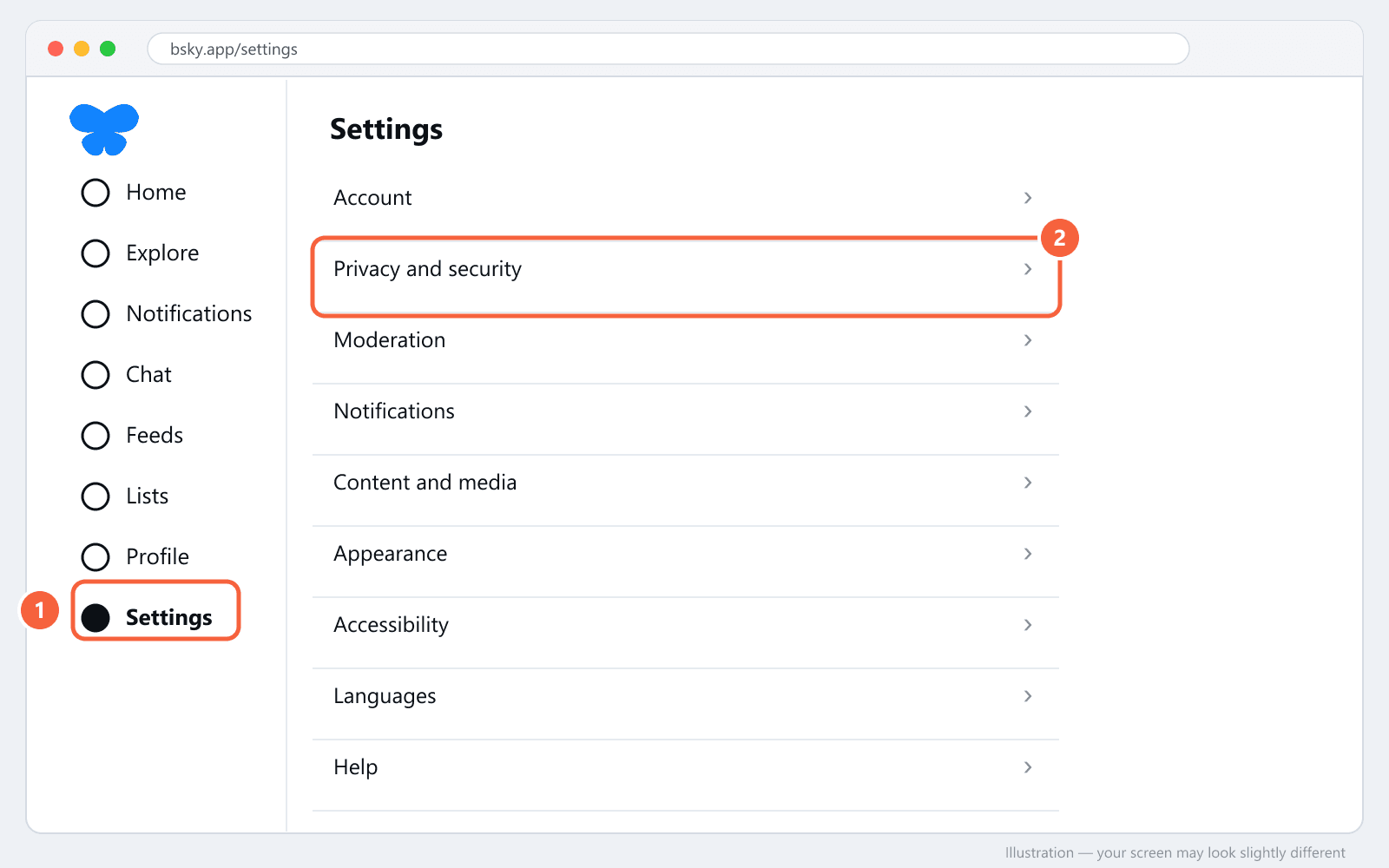
Step 2: Open App passwords and add one
Click App passwords (1), then Add App Password (2).
App passwords → Add App Password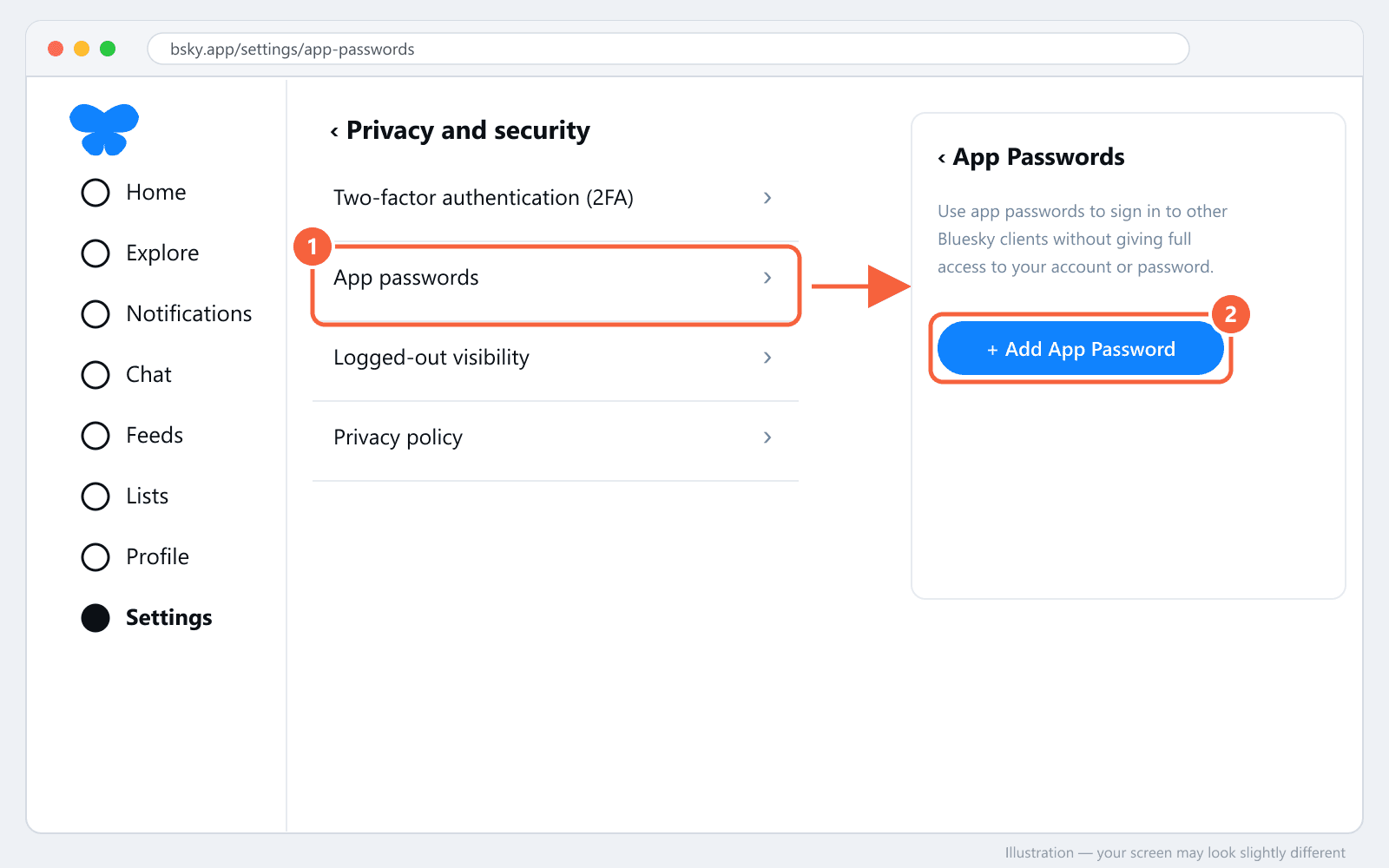
Step 3: Name it DadyPost and allow direct messages
Type DadyPost as the name (1). Turn on Allow access to your direct messages (2) — DadyPost's Inbox needs it to read and answer your Bluesky DMs; posting works either way. Click Next (3).
DadyPost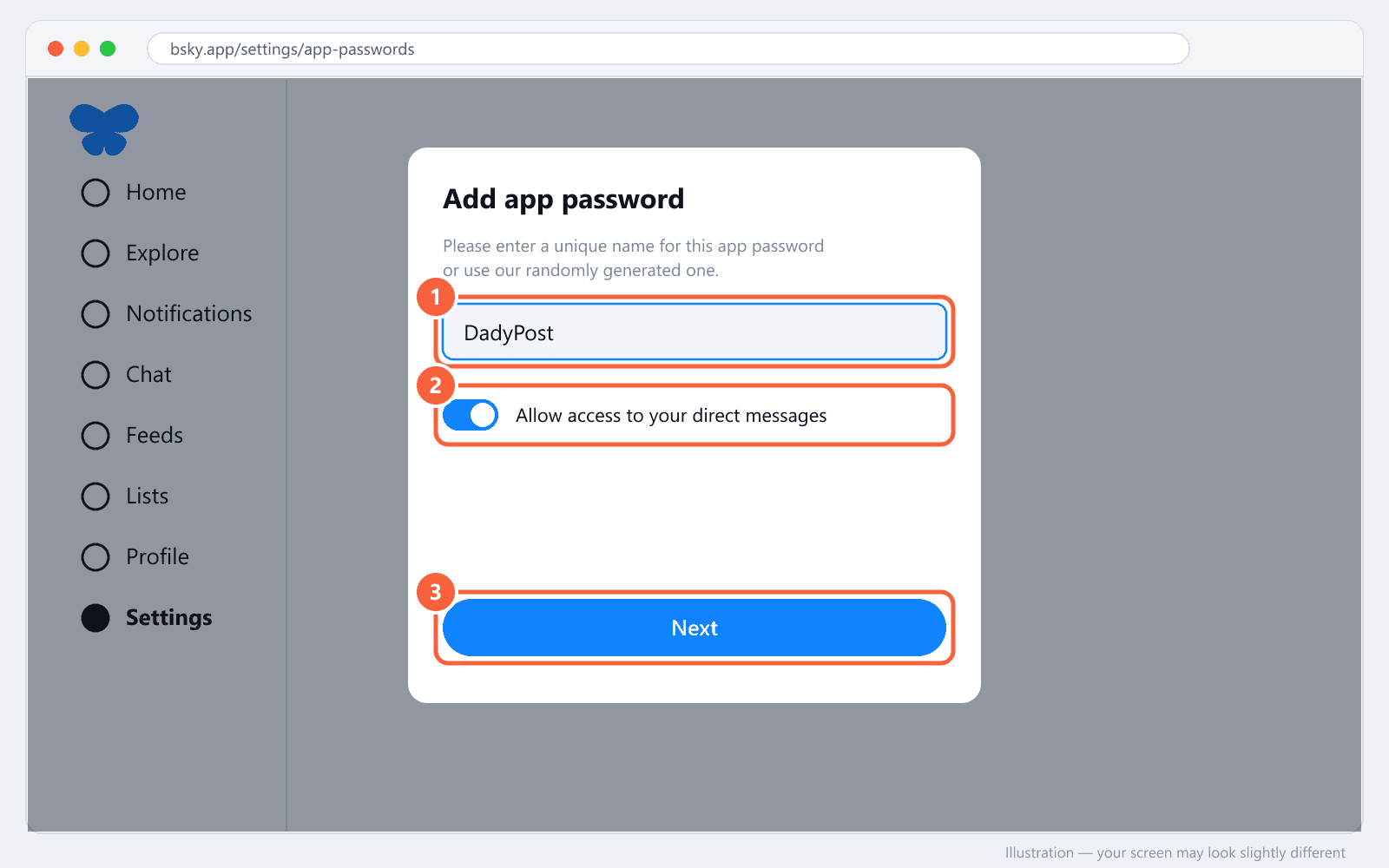
Step 4: Copy the app password
Bluesky shows the new password once, as four groups of letters and numbers (1). Copy it now — you can't view it again. Then click Done (2). If you lose it, delete it and create a new one.
xxxx-xxxx-xxxx-xxxx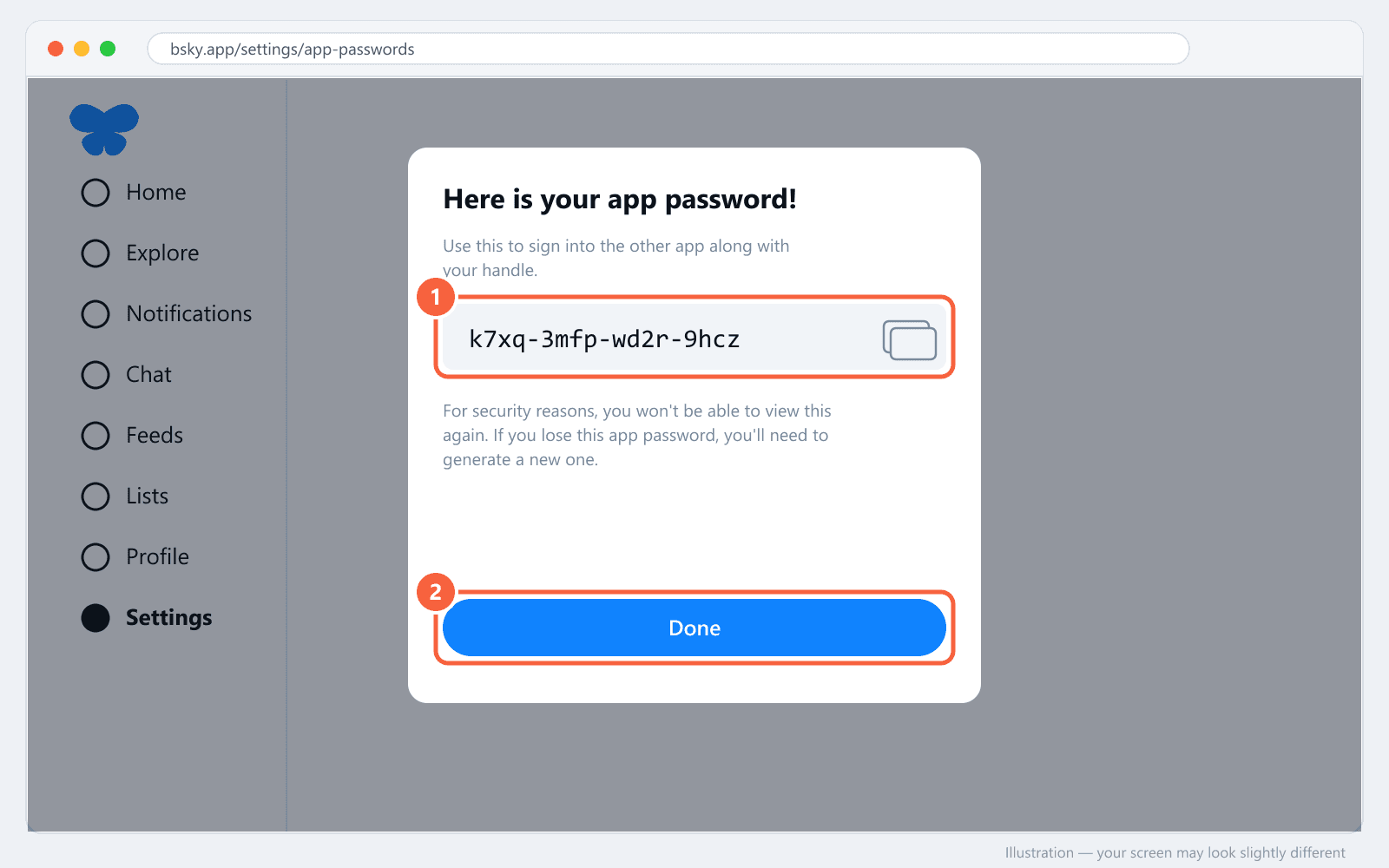
Step 5: Find your handle
Your handle is under your name on your profile (1), for example yourname.bsky.social — or your own domain if you set one up. You'll type it without the @.
@yourname.bsky.social → yourname.bsky.social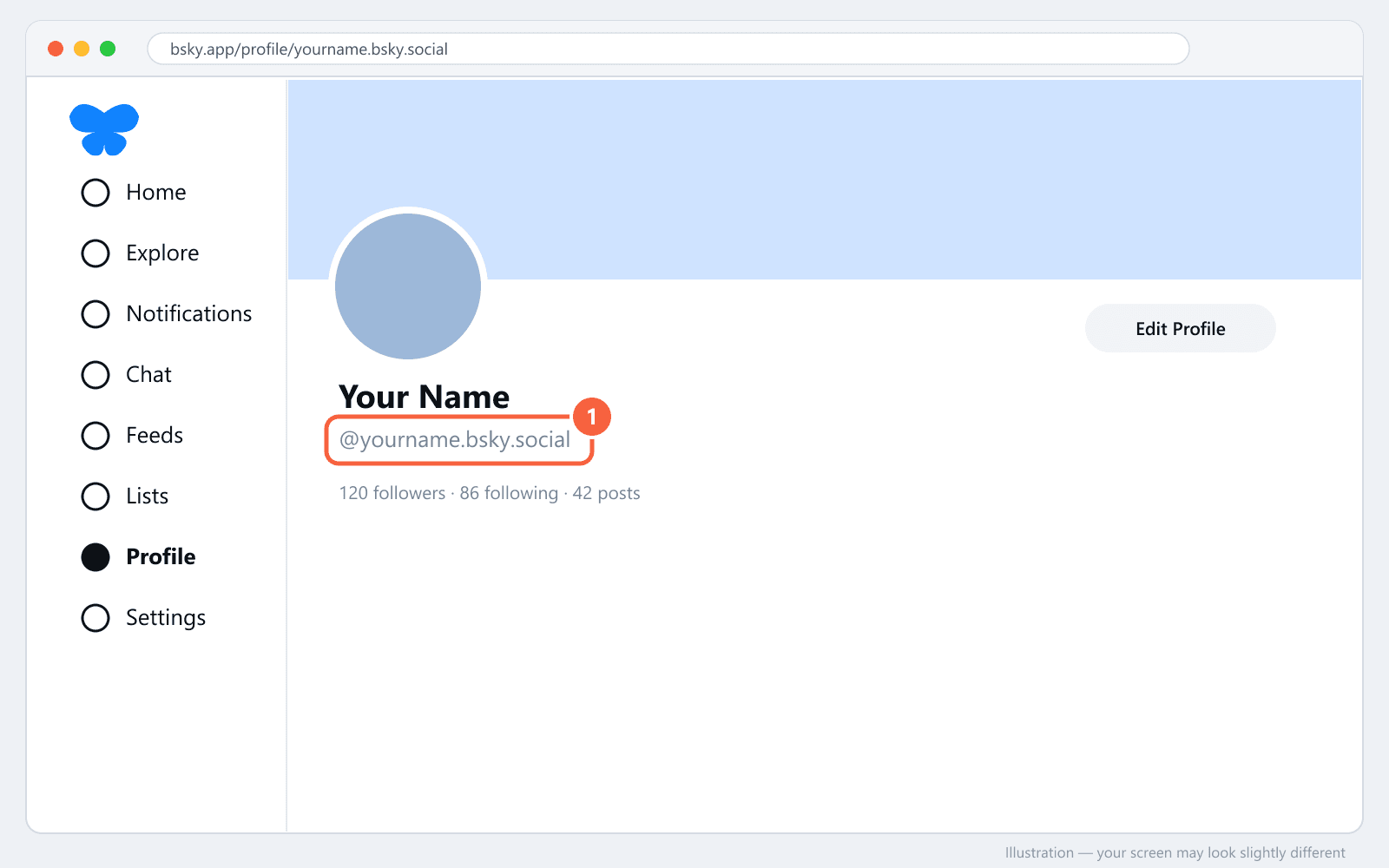
Step 6: Connect in DadyPost
In DadyPost, open Connect Profiles, find Bluesky and click Connect. Type your handle into Identifier and paste the app password into Password, then click Connect Bluesky. Your Bluesky account appears in your channels right away.
What goes where in DadyPost
| DadyPost field | What to paste |
|---|---|
| Identifier | Your handle without the @, e.g. yourname.bsky.social (your account email works too) |
| Password | The app password from step 4, e.g. abcd-efgh-ijkl-mnop — never your normal Bluesky password |
Troubleshooting
- "Invalid credentials"
- Check the handle has no @ and no spaces, and that you pasted the app password exactly (with its dashes). If you deleted that app password in Bluesky, create a new one.
- Posting works but the Inbox shows no Bluesky messages
- The app password was created without direct-message access. Delete it in Bluesky, create a new one with Allow access to your direct messages turned on, and reconnect Bluesky in DadyPost.
- I use two-factor authentication
- That's fine — app passwords work with 2FA turned on, and you won't be asked for a code.
- I want to disconnect DadyPost from Bluesky
- Delete the DadyPost app password under Settings → Privacy and security → App passwords. DadyPost loses access immediately.